

To make text stand out on an image, use strong contrast, clear typography, and uncluttered placement. Choose effects that keep both the message and subject recognizable.
Highlights:
- Use overlays, gradients, or shapes on busy backgrounds.
- Set readable fonts, sizes, and colors.
- Check mobile readability, cropping, and export quality.
Make Text Stand Out on an Image with Right Image and Text Placement
Choose a photo with a quiet area for your message, then position the words away from important details. Planning the composition of your website graphics is often the quickest way to make text stand out on an image without adding extra effects. Consider the background’s color, texture, and focal point before you begin.
The reason I start with emphasizing this part is that I’ve seen far too many times, both when it comes to the works of others and myself, how an image creation process has been started without any planning in mind. A lot of flashy details get added, but there is no real space that would allow a text message to really stand out.

Look for Negative Space and Uncluttered Areas
Place your message over an area with few details, such as an open sky, plain wall, or softly focused background. Negative space does not have to be white. It simply needs to give the lettering a relatively consistent backdrop.
If the picture feels crowded, extend the canvas and add a matching background beside it. This creates room for a caption while keeping the original subject visible. It can help make text stand out on an image when covering the photograph would hide useful information.
Position Text Away From Faces and Important Details
Keep text clear of faces, products, and details the audience needs to see such as website infographics. A readable headline loses value if it covers the feature that explains the message.
Try placing the subject on one side and the copy on the other. Follow useful visual cues: a person’s gaze, a branch, or an architectural line can lead toward the headline. A blank laptop screen or sign within a photo can also provide a natural place for a short message.
Use Alignment and Margins to Give Text Room to Breathe and Stand Out
Align related text consistently and leave a visible buffer around it. Comfortable margins keep letters from feeling trapped against the image edge or crowded by nearby objects.
Left alignment often works well for several lines, while a centered headline can suit a symmetrical composition. The rule of thirds provides another starting point:
- Place the text around a third of the way across the frame.
- Then adjust for balance.
- Keep the spacing between related elements consistent.
Choose Fonts and Colors That Improve Readability
You can also make text stand out on an image by using clearly drawn lettering and colors that separate it from the area directly behind it. Typography and contrast work together: making the font larger alone will not always make text stand out on an image if its strokes disappear into the background.
I would also urge you to consider the overall web page color palette in relation to the current image, and in conjunction image text, that you are creating. Maybe there are aspects when it comes to color that do not fit well together?

Select a Readable Font With the Right Size and Weight
Choose a font with clear letterforms and enough weight to remain visible over the photograph:
- Medium, semibold, and bold styles are useful starting points.
- Very thin strokes are easily lost among branches, clothing, or bright highlights.
- Bold sans-serif fonts suit direct headlines, while sturdy slab serifs can add emphasis and character.
- Script fonts can suggest elegance in a short invitation title, but decorative lettering becomes difficult to follow in longer passages.
Match the font’s mood to the design and judge its size in the finished layout.
Create Strong Contrast Between Text and Background
Choose light text for a dark backdrop or dark text for a light one, and check the whole area beneath the lettering. White text can vanish over clouds even when most of the photograph is dark.
Adjust Letter Spacing, Line Spacing, and Text Length
Keep the wording short and adjust spacing until individual letters and lines are easy to distinguish. Removing unnecessary words often creates more improvement than another visual effect.
Avoid squeezing letters together or separating them so widely that words become difficult to recognize. Give stacked lines enough room without breaking the headline into disconnected pieces. Keep important phrases together where possible, and shorten a line if it pushes the text into a busier part of the photograph.
Establish a Clear Hierarchy Between Headlines and Supporting Text
Make the main message the most prominent text, then give supporting details a quieter treatment. Size, weight, position, and color should tell readers what to notice first.
Pairing a bold headline font with a simpler supporting font can create hierarchy without adding clutter. A different subheading color can help if it remains readable and fits the image palette.
Use bold or italics to emphasize selected words. A clear reading order helps make text stand out on an image without making every line equally loud. Reusing the same type pairing and limited colors across a campaign also strengthens brand consistency.
How to Make Text Stand Out on an Image with Busy Backgrounds
Reduce visual competition behind the words or give the lettering a clearer edge. Overlays, gradients, blur, and text effects can all make text stand out on an image. Choose the treatment that preserves the details your audience needs.

Add a Semi-Transparent Overlay to the Image
Cover the photograph with a translucent color layer to give the text a more consistent background and make it stand out more. A dark overlay works especially well with white lettering, while a light overlay can support dark text.
Place the overlay above the image and below the text. Increase its opacity gradually until the message reads comfortably while the photo remains recognizable. A full image layer suits title slides and website banners because it changes the entire backdrop evenly. This can make text stand out on an image without adding a visible box around the headline.
Place a Solid or Semi-Transparent Shape Behind the Text
Add a rectangle, circle, or other simple shape behind the words when only a small area needs extra contrast:
- A solid fill offers a predictable background.
- A translucent fill reveals some of the image beneath it.
Black text on a white panel is a straightforward option. Leave padding inside the shape and avoid covering faces. Another approach is to place a solid color beneath the photograph and reduce the photo’s opacity, allowing the underlying color to soften the image before adding the text.
Use a Gradient Behind the Text
Use a gradient when you need strong contrast around the headline and a clear view of the subject elsewhere. Fade the overlay from a darker or lighter area beneath the words to full transparency near the important image details.
Gradient stops control where the color and transparency change. Move them until the transition feels smooth and the entire headline has sufficient separation. This localized treatment can make text stand out on an image while preserving a face or product on the opposite side.
Darken, Lighten, or Apply a Color Filter to the Image
Adjust the photograph’s brightness or color when its current tones compete with the lettering. Darkening bright areas supports white text. Lightening a dark region can create space for black lettering.
| Method | What to use it for |
|---|---|
| Curves, Levels, and brightness/contrast controls | Make broad tonal adjustments when the background is too bright or dark for the lettering. |
| Burn tool or soft brush | Darken small bright patches directly behind the text. |
| Reduced saturation | Tone down competing colors while retaining some of the image’s original palette. |
| Monochrome treatment | Simplify distracting colors into a more unified background. |
| Restrained sepia tone | Introduce a consistent, warm color treatment that reduces competing hues. |
Sample accents from the edited image to maintain harmony, and preserve product colors when accurate appearance matters.
Blur the Background Behind the Text
Blur distracting detail when the photo mainly establishes a mood rather than communicates fine information. Softening a bookshelf, crowd, or foliage reduces the edges competing with letter shapes.
Apply blur across the background or limit it to the area beneath the headline. Increase the strength gradually and retain important subject details. Blur can help make text stand out on an image, but a pale blur still needs darker lettering or another contrast adjustment.
Add a Subtle Drop Shadow to Make Text Stand Out on an Image
Add a soft shadow when the text needs modest separation without a box or major background edit. A dark shadow can define white lettering across areas with mixed brightness.
Keep the offset small and adjust blur and opacity until the words remain crisp. For website text, CSS text-shadow controls shadow offsets, blur radius, and color, allowing a shared treatment across multiple banner images without editing each photo separately.
A shadow can make text stand out on an image with mild tonal variation. Check every slide or banner separately when the same style sits over different photos.
Apply an Outline or Stroke to the Text
Use a narrow contrasting outline when letter edges cross several background colors. A dark stroke around white text, for example, can preserve its shape over both bright and dark areas.
Start thin and inspect small counters, such as the spaces inside letters like e and a. Heavy outlines can close those spaces and make the type harder to recognize.
- Increase the font weight first if the lettering is too delicate.
- Then add only the stroke needed for separation.
Use Ribbons, Strips, Borders, and Simple Framing Elements
Place short copy on a ribbon or strip when the design needs a clear label or announcement. A filled rectangle creates a reliable text background and can balance the photograph with the message.
Slight rotation can add energy, while a circle backed by a chevron can form a promotional badge. Lines above and below a headline provide framing but do not fix weak contrast by themselves. A subtle pattern fill in a shape or background may suit a playful presentation, but remember to keep it quiet enough that it does not become another busy backdrop.
Something that I also think should be added here when it comes to adding for example ribbons, is that you ought to make sure that such ribbons fit in well with the rest of the design. It can be tempting to add whatever fun and popping ribbon that you find in your image editing program or online service, but make sure it fits well with the rest of the design.
Use Masking and Cutouts for Layered Text Effects
Use masks to control which parts of an image or text layer remain visible, creating selective fades or depth. A gradient mask can blend a backing layer into the photograph without a hard edge.
For a cutout effect, place the original photo at the bottom, the headline above it, and an isolated subject on top. Allow only a small overlap so every word stays recognizable. Photoshop layer masks hide or reveal portions of a layer without permanently erasing them.
Layering can make text stand out on an image by integrating it into the composition, provided the effect preserves readability.
How to Add Text to an Image to Make It Stand Out: Step-by-Step
Build the composition in a simple order: prepare the canvas, add the message, establish contrast, then inspect the export. This workflow helps make text stand out on an image without repeatedly rebuilding the layout.

1. Open Your Image in Your Chosen Tool
Create a canvas for the intended destination and upload a sufficiently detailed image. Set the orientation and crop before positioning the words, since those decisions determine where usable space remains.
Check that the subject fits comfortably and leave room for the message. If you start with a template, replace the sample picture first. A layout that worked with the original photograph may need adjustment when the focal point changes.
2. Add Your Text and Adjust the Font, Size, and Color
Enter the shortest wording that communicates the message, then set a readable typeface, weight, and color. Give the headline priority and keep dates, labels, or supporting copy smaller but still legible.
Work with the background immediately behind each line. Choose a consistent accent color for secondary details and avoid introducing a new font for every element. Keep the main wording opaque enough to remain clear; reducing text opacity often weakens contrast.
3. Position the Text and Apply Your Chosen Effects
Place the text in the clearest available area, then add one treatment that addresses the remaining problem. Use a panel for a small busy patch, a gradient for a gradual transition, or a broader overlay for an uneven full-frame image.
Combine techniques only when each has a purpose. A colored overlay and line separators can provide contrast and structure together. The aim is to make text stand out on an image while retaining the photograph’s meaning and a clear reading order.
4. Check Readability and Save Your Image
Inspect the finished composition at its expected viewing size, then save both an editable version and a delivery file. Check spelling, line breaks, text placement, contrast, and any overlaps before downloading.
Preview the exported file too. Compression or resizing can soften letters even when the editor looks sharp. PNG and JPEG are common image outputs. Choose the format and dimensions for the destination, then confirm that the final upload preserves the message.
Examples of Effective Text Overlays
Match the treatment to the message and viewing context:
- Social graphics need quick recognition.
- Invitations need clear details.
- Website headers must stay readable as the layout changes.
Social Media Posts and Video Thumbnails
Use a short, bold headline that remains recognizable in a small preview. Keep the subject visible and place the copy over negative space or a simple backing shape.
For a cooking thumbnail, position the dish on one side and a few descriptive words on the other. A dark gradient can make text stand out on an image containing bright plates or reflective surfaces.
Reuse the same type pairing and accent colors across a series to give the graphics a consistent identity. Clear wording helps readers understand the topic and decide whether to visit your website.
Marketing Banners and Advertisements
Give the offer the strongest emphasis and separate the call to action from supporting details. A product image, concise benefit, and clear instruction such as “Explore the Collection” create a manageable reading sequence.
Use a strip or solid panel if the promotional copy needs a predictable backdrop. Preserve product details and colors so the photograph continues to explain the offer. A clear call to action gives readers a next step and can encourage interaction. Readability makes the message easier to understand, but engagement also depends on the audience, proposition, and placement.
Blog Images and Website Headers
Use a clear headline over a subdued image area and test how the composition changes across screen widths. A desktop crop may leave open sky behind the words while a narrower crop moves them over a building.
These approaches can help make text stand out on an image across responsive layouts:
| Approach | How it helps |
|---|---|
| Live HTML text over a background image | Keeps essential wording adjustable as the layout changes. |
| Consistent overlay | Creates a more uniform backdrop to improve contrast behind the headline. |
| Gradient | Adds contrast near the text while gradually fading into the photograph. |
| Translucent text panel | Provides localized separation between the words and a busy image area. |
Keep the headline styling aligned with the site’s typography, and check that the chosen treatment remains effective across different screen sizes.
Event Invitations and Announcements
Make the event name, date, time, and location immediately easy to find. Decorative type can suit the title, while straightforward supporting text keeps practical details clear.
For a floral invitation, place the information on a light central panel and leave the illustration visible around it. A restrained script-and-sans-serif pairing can establish mood and hierarchy together. Check that shadows, transparency, and ornamental borders do not compete with the information guests need.
Common Mistakes That Make Text Hard to Read
The most common problems are competing detail, weak contrast, and excessive styling. When trying to make text stand out on an image, simplify the composition before adding another effect.
In my view, both humans and machines are prone to making such stylistic errors. A person can, of course, become “trigger happy” by wanting to add way too many details, but the same can be said for AI generated images.
AI can be very useful for image generation in order to get a point across. However, it the process needs to be performed with care. I’ve seen way too many generations where the AI wants to put in all too many entities into an image, since that was basically just how it was raised 😉. You will often have to do several image generation takes and prompt it to simplify its design as much as possible.
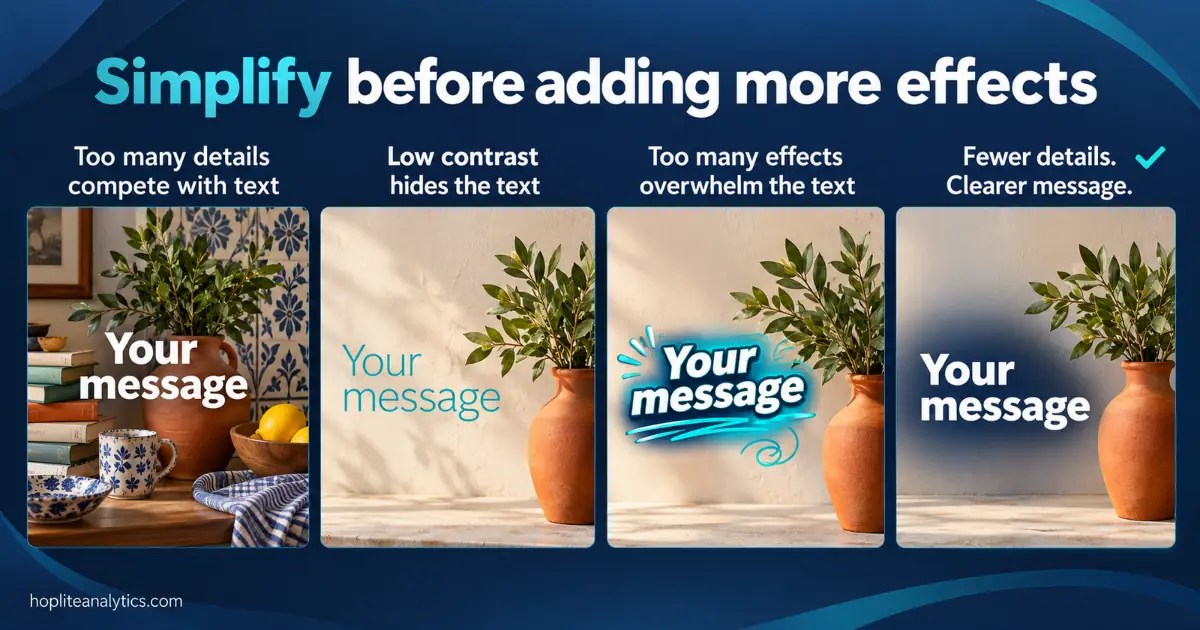
Adding Too Much Text or Too Many Decorative Elements
- Reduce the message to what the reader needs at that moment, since dense paragraphs, multiple badges, patterns, and competing shapes can leave no clear point of entry.
- Move longer explanations into the caption, slide notes, or surrounding page.
- Keep one dominant headline and remove decorations that do not support it. If every element demands attention, neither the text nor the photograph gets enough room to communicate clearly.
Using Low Contrast, Thin Fonts, or Excessive Capitalization
Fix the color relationship and font weight before relying on dramatic styling. Pale letters over bright areas and fine strokes over texture are common causes of disappearing text.
- All capitals can work for a short bold title, including one over a blurred background with a restrained shadow.
- Longer passages usually benefit from conventional capitalization.
- If no heavier font weight is available, a slightly offset duplicate can simulate thicker lettering, but inspect it for uneven edges.
- Selecting a suitable weight gives more reliable control.
Applying Shadows, Outlines, and Other Effects Too Heavily
Reduce effects when they make letter shapes fuzzy, crowded, or difficult to distinguish. A thick stroke can close small interior spaces, while a large glow may create a distracting halo.
- Temporarily disable each effect to see what it contributes.
- Keep a shadow that provides useful separation and remove redundant layers.
If the words still disappear, change their placement or background treatment rather than increasing every effect at once.
Final Checks Before Publishing Your Image
Judge the exported graphic in the place it will actually appear. Readability, cropping, contrast, and image quality must hold together after the design leaves the editor.

Preview the Text at Its Actual Display Size
View the image at its expected on-screen size instead of relying on a zoomed-in canvas. The words should remain recognizable without enlarging the preview.
- For a presentation, also consider viewing distance.
- For a thumbnail, check the small card preview.
It is easier to make text stand out on an image when you evaluate the version your audience will see. If a supporting line becomes illegible, enlarge it, shorten it, or move it outside the graphic.
Check Contrast and Readability on Mobile
Open the design on a phone and inspect the text against every background area it crosses. Small displays can reveal problems with delicate strokes, narrow spacing, and crowded lines.
Use a contrast checker for the chosen foreground and background colors, considering the final composite beneath the letters. An overlay may need greater opacity where a bright highlight passes behind the headline. To make text stand out on an image at smaller sizes, maintain strong separation and simplify any details that compete with the message.
Allow for Cropping and Keep Text Within Safe Margins
Keep essential words comfortably inside the frame and test the crops used by your destination. Feed previews, banners, and responsive headers may display different portions of the same image.
Allow space around both the text and important subjects. If one composition cannot survive every crop, create separate versions for different aspect ratios. Reposition the headline in each version so that it stays over the area you prepared for it.
Export at a Resolution That Keeps Text Sharp
Export enough pixels for the intended display and inspect the result for soft or damaged letter edges. Increasing a resolution label alone does not add detail to a small image.
| Format | Often useful for | What to check |
|---|---|---|
| PNG | Text-heavy graphics and designs with crisp edges. | Confirm that the lettering stays sharp and the file size suits the destination. |
| High-quality JPEG | Photo-heavy designs where a smaller file size is useful. | Inspect text for softened edges or visible compression artifacts. |
Compare the actual outputs because compression settings matter. Efforts to make text stand out on an image can be lost if the final file is enlarged beyond its useful dimensions or compressed too heavily.
Conclusion
The most reliable way to make text stand out on an image is to combine clear placement, readable typography, and strong contrast. Use negative space first, then add an overlay, gradient, shape, blur, or restrained text effect where needed.
Keep the message concise, preserve important image details, and check the exported design at its final size. Those decisions give the words a clear role while allowing the photograph to support the message.
Sources
- The impact of web page text-background colour combinations on readability, retention, aesthetics and behavioural intention (2004)
- Psychophysics of reading. XI. Comparing color contrast and luminance contrast (1990)
- Discriminability measures for predicting readability of text on textured backgrounds (2000)
- Integrating Text with Video and 3D Graphics: The Effects of Text Drawing Styles on Text Readability (2010)
- The Effects of Text Drawing Styles, Background Textures, and Natural Lighting on Text Legibility in Outdoor Augmented Reality (2006)
- Does Print Size Matter for Reading? A Review of Findings from Vision Science and Typography (2011)
- Effect of letter spacing on visual span and reading speed (2007)
- The effect of letter-stroke boldness on reading speed in central and peripheral vision (2013)

His academic background includes a master's degree in economic growth and innovation, as well as studies in statistics and the philosophy of language. Johan is fluent in Swedish, English and Spanish.
- How to Make Text Stand Out on an Image - October 23, 2026
- How To Create Infographics For Websites – Practical Guide - October 18, 2026
- Google September 2026 Spam Update Is Completed - October 12, 2026